Introduction
The VEDA Excel Add-In connects Microsoft Excel to a running VEDA 2.0 desktop session. From Excel you can explore model data behind cells, work with tag tables (~ tags), and check which processes and commodities a row’s filters match.
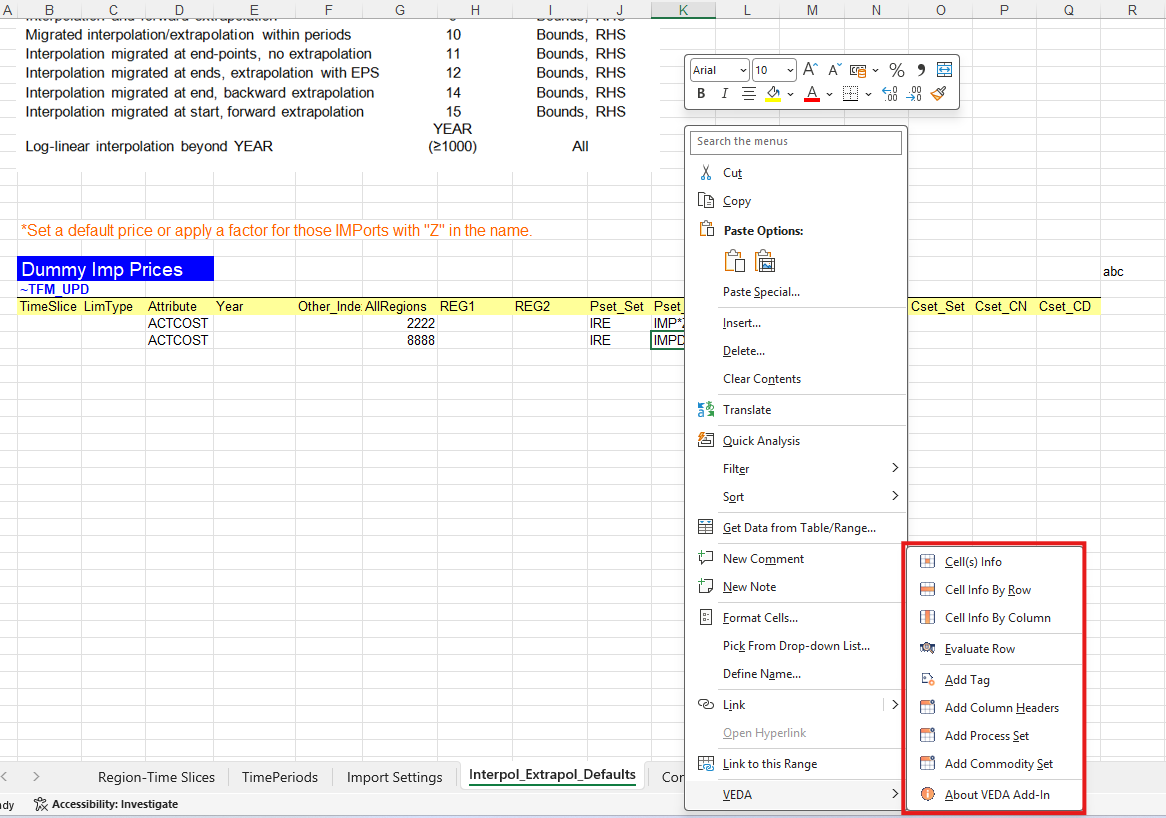
Commands appear in two places and do the same things:
- The VEDA tab on the Excel ribbon
- The VEDA submenu on the cell right-click menu

Prerequisites
- Microsoft Excel 2016 or later
- VEDA Excel Add-In installed and loaded (Installation — from
VedaExcelAddIn_<version>.zipon the VEDA 2.0 release) - VEDA 2.0 running on the same machine, with your model imported
You do not use the add-in without VEDA 2.0. Connection details are in How we connect. How the open workbook is tied to a model is in How models are linked. You can also insert and evaluate tag tables on a file that is not under a model folder; see Files outside the model.
Ribbon layout
The VEDA tab is organized into six groups:
- Cell Info
- Cell(s) Info — explore flat-file data for the selection in a pivot view
- By Row / By Column — same pivot view for an entire row or column within the current table region
- Evaluate Row — check which processes and commodities match the filter values in the active tag row
- Tag tables
- Add Tag — insert tag tables on the sheet
- Add Column Headers — add missing column headers
- Add Process Set / Add Commodity Set — append sets to
pset_setorcset_seton the active tag row (Add Process / Commodity Set)
- About — who provides the add-in and basic requirements
- Session (How we connect)
- Connection — Connected or Not Connected, and Model: …
- Version — a separate line for compatibility (ok, or upgrade the add-in or VEDA)
- Fill colors — key for empty required cells (light red) and empty value cells (light gray) (Fill colors)