Navigator
Demo:
- The Navigator provides a comprehensive view of all the templates in the various folders managed by Veda for the current model (youtube video).
- The Navigator is the main vehicle for accessing, importing, and coordinating the various templates that make up a model.
- Its main screen is divided into sub-windows according to the various types of templates managed by Veda.
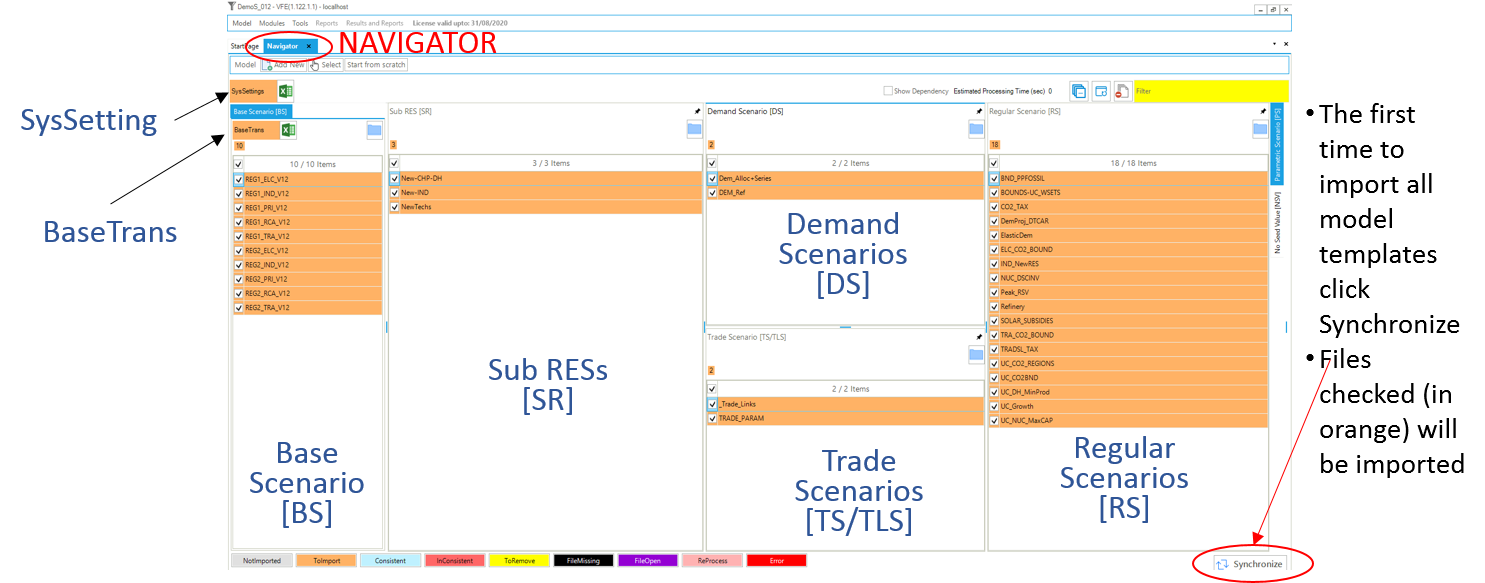
Scenario Sections
Base Scenario [BS]
Templates used to set up the base-year (B-Y) structure of the model
(existing commodities and current processes stock, and the base-year
end-use demand levels), according to the energy flows reflect the overall
energy balance. Thus the start year of the model can be calibrated to the
energy balance according the B-Y Templates. The B-Y templates are named as
VT_
- BY_Trans: are transformation files used to update the information included in the B-Y templates (update existing values for existing attributes) and/or to insert new information (insert new attributes for existing processes) in the B-Y templates. They work like a scenario file (described below), but the rule-based filters and the update/insert changes apply only to those processes and commodities already existing in the B-Y templates. The BY_Trans file is introduced in DemoS_009.
SysSettings
SysSettings is used to declare the very basic structure of the model including regions, time slices, start year, etc. It also contains some settings for the synchronization process and can include some additional information. There is only one such file; it has a fixed name that stands for System Settings.
SubRES [SR]
SubRES files are used to introduce new commodities and processes in the RES
that are not part of the B-Y templates. However, while the B-Y templates
are region-specific, the SubRES are region independent. For each SubRES
file there is a corresponding transformation (Trans) file allowing the
introduction of region-specific process attributes, including the
availability (or not) of processes in each region. To make changes to the
SubRES_Trans-
Regular Scenario [RS}
Scenario files are used to update existing information and/or to insert new
information in any part of the RES, including B-Y templates, SubRES files,
and Trade files (see below). They are also used to include any additional
user constraints in the model. The naming convention is: Scen_
Demand Scenario [DS]
Demand Templates Include all the information necessary to project end-use
demands for energy services in each region, such as macroeconomic drivers and
sensitivity series. Multiple demand files may be used, to model different
demand growth scenarios for instance. The naming convention is:
ScenDem_
Trade Scenario [TS]
This section of the Navigator contains a file in which all unilateral and/or
bilateral trade links between regions are declared: ScenTrade__Trade_Links,
and associate data provided when appropriate. The latter contains all of the
attribute specifications for the trade processes. Multiple trade files may be
used, to model different trade scenarios or for different commodities. The
naming convention is: ScenTrade_
Quadrants
Template containing comprehensive information about the model’s basic structure (regions, sub-regions, time-periods, time-slices, …) SysSetting
Calibration templates for Base Year Base scenario [BS] – current technology mix BaseTrans – operations on the BS templates
Repository for the depiction of future technologies SubRES [SR]
Three groups of flexible, “rule-based”, scenarios files: Regular Scenarios [RS] - files for data addition and updates Demand Scenarios [DS] - projection module tied to economic indicators, fine-tuned with analyst insight Parametric Scenarios [PS] - functionality designed to handle easily multiple runs and parametric analysis
Two new components are presented:
- Parametric scenarios – “programmed” multi-value suite of scenarios
- No Seed Values – the files that do not provide seed values to any other scenario. These are processed in parallel.
Tip
To handle parametric files better in Github's version control we suggest to add the following block quote to your .gitignore file to ignore changes in the ParScenFiles directory within your Git model folder. This applies only to users who utilize the model folder in their GitHub repository.
Functionality
- Navigator enables easy access to any of the Excel templates constituting the currently open model
- Double-clicking directly on any file name (or click the Excel icon next to it, in the case of the BY_Trans and SysSettings files) will open that file in Excel
- Clicking on the folder button above each section of the Navigator will open the associated folder in Windows Explorer
-
Provides feedback as to the status of the various files and the integrated database managed by Veda according to colour legend at the bottom of form
- Not imported – not yet read into the database
- Imported – selected for importing with next SYNC
- Consistent – templates that are in sync with the database
- InConsistent – file has been modified after the last SYNC operation
- ToRemove – missing template imported previously now flagged for removal from the database
- FileMissing – previously imported template that no longer exists in the template folder
- FileOpen – a template currently open, so can not be processed/imported
- Error – if a file has thrown an error

- The SYNCHRONIZE button will process all templates in the application folder marked as ToImport (orange)
SYNC Operation
Synchronize imports all selected Excel workbooks into the Veda database
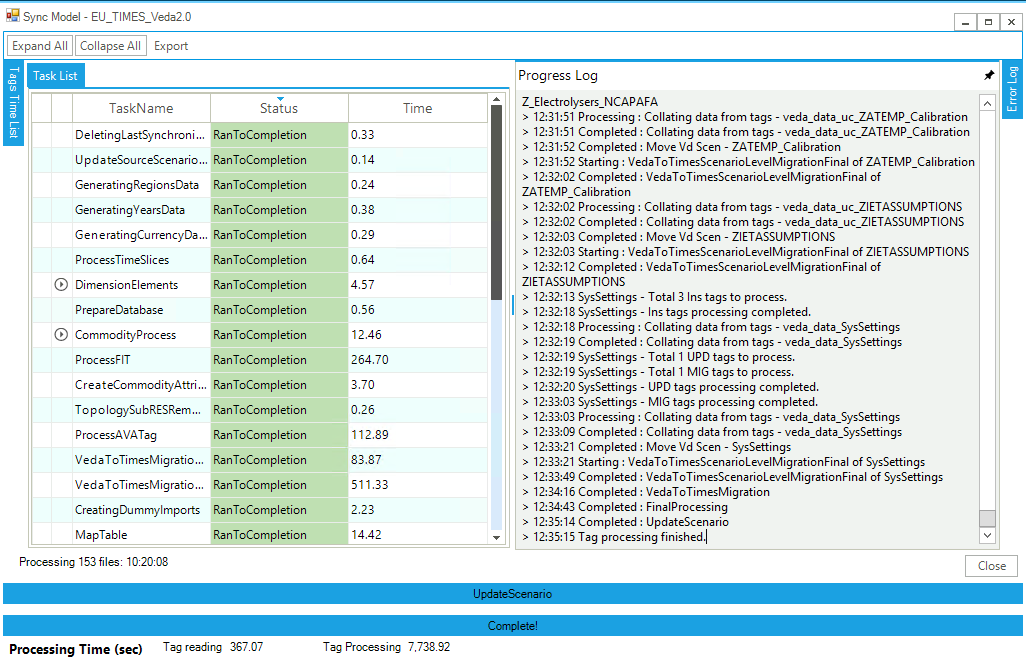
Right form traces the SYNC operation and the left reports the time needed for each step
After synchronizing a model you can return to the Navigator.