Add Tag
What it is for
Add Tag opens a task pane where you pick a tag from the catalog and insert a tag table on the sheet. In VEDA, tags (~TagName) define structured tables that drive model data. The pane also hosts Evaluate Row mode for working with an existing table (Evaluate Row); in that mode, the add-in outlines the active data row in orange so you can see which row the pane is using (see Orange outline on the Evaluate Row page).
Each open workbook gets its own Add Tag pane (independent state). Closing the workbook closes that pane. The pane opens at about 25% of the Excel window width (minimum about 280 pixels).
Tag tables on the sheet
- A tag cell starts with
~followed by the tag name (for example~FI_T). - The header row is the row immediately below the
~cell. - Column headers are the contiguous non-empty cells on that header row, found by walking left and right from the tag column until a blank cell.
- A title in another column on another row (for example a section title beside the tag) does not shrink or shift that header range.
- If the active cell sits in more than one overlapping tag table, you get a Tag In Tag error. Separate or adjust tables so only one applies.
How to use — insert a tag
- Connect to VEDA. For a classified scenario workbook see Workbook recognition; for a file outside the model folder see Files outside the model.
- Choose Add Tag from the VEDA ribbon or right-click menu (or use the Add Tag mode button in the pane).
- In the tag list, pick a tag.
- Under an imported model: synced files show tags for this workbook; classified-only files show tags for that file type; unrecognized names show an empty list.
- Outside the model: a scenario-like file name shows tags for that type; any other name shows all tags with columns.
- A few tags are left off the list (they are not offered for new tables). Evaluate Row still works if those tags are already on the sheet.
-
The add-in writes
~TagNameand a header row at the active cell, then selects the first data cell.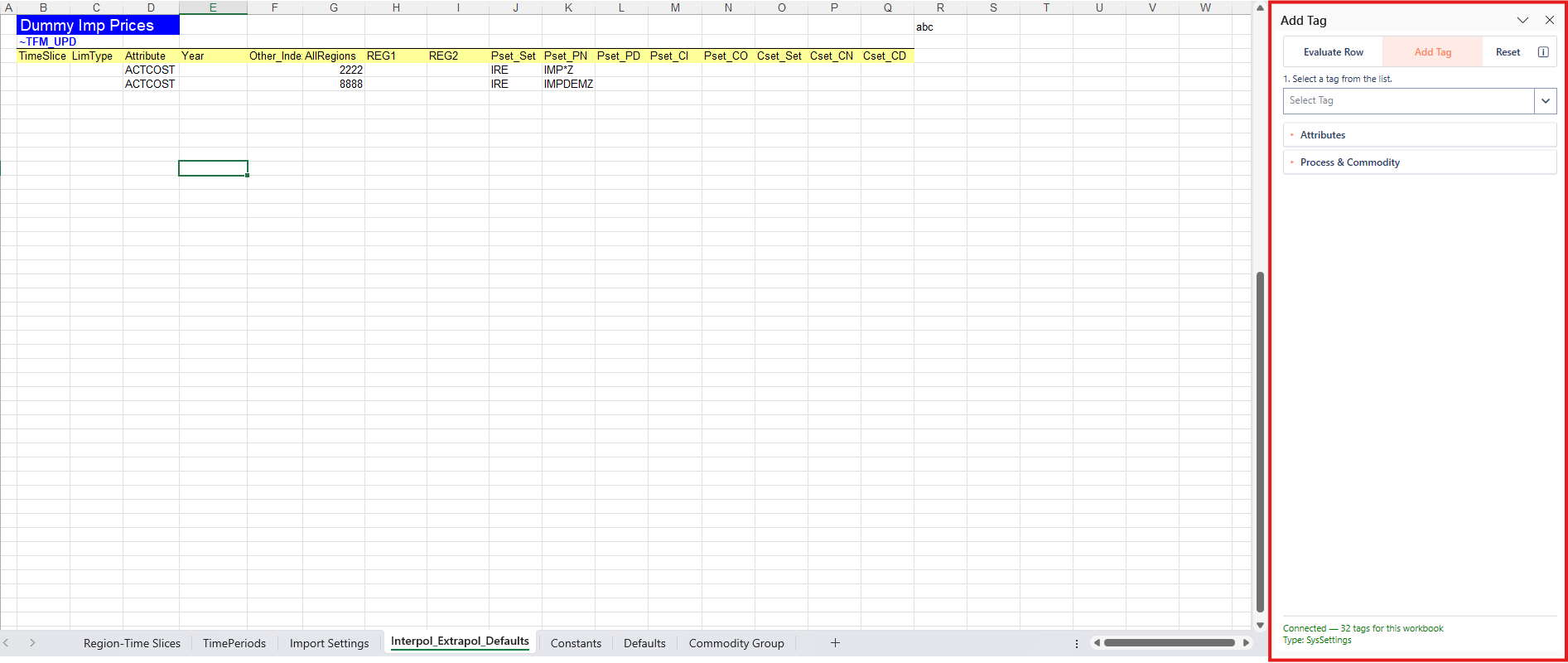
-
Use the Attributes section to choose attributes. Process & Commodity starts collapsed after insert so you can pick attributes first; expand it when you need process/commodity tools.
Sections use accordion expanders (Attributes, Process & Commodity). Show mapping opens a popup of the current row’s process/commodity filter values.
Expanded value headers
For some tags, Add Tag writes member names as the value headers. Those headers sit at the right of the default columns.
| Tags | What is written |
|---|---|
tfm_ins, tfm_dins, tfm_upd |
Endogenous region names (no value column) |
tfm_ins-ts, tfm_dins-ts, tfm_upd-ts |
Milestone years, and one region column |
tfm_ins-tsl, tfm_dins-tsl |
Time-slice names, and one region column |
If the model has no matching members, the original header is left as-is.
Empty required dimension cells are light red. Empty value cells (including these expanded headers) are light gray. See Fill colors.
Typing an attribute in the sheet
In Evaluate Row mode (including right after Add Tag inserts a table), you can type an attribute name into an empty attribute-column cell and leave the cell (for example by moving to another cell):
- A known attribute (matched ignoring case) fills row defaults as if you picked it in the pane.
- An unknown value is cleared and the status line shows an error.
- Multi-cell paste is ignored; only a single-cell change is handled.
- Changing an attribute that was already filled does not re-run defaults.