Evaluate Row
What it is for
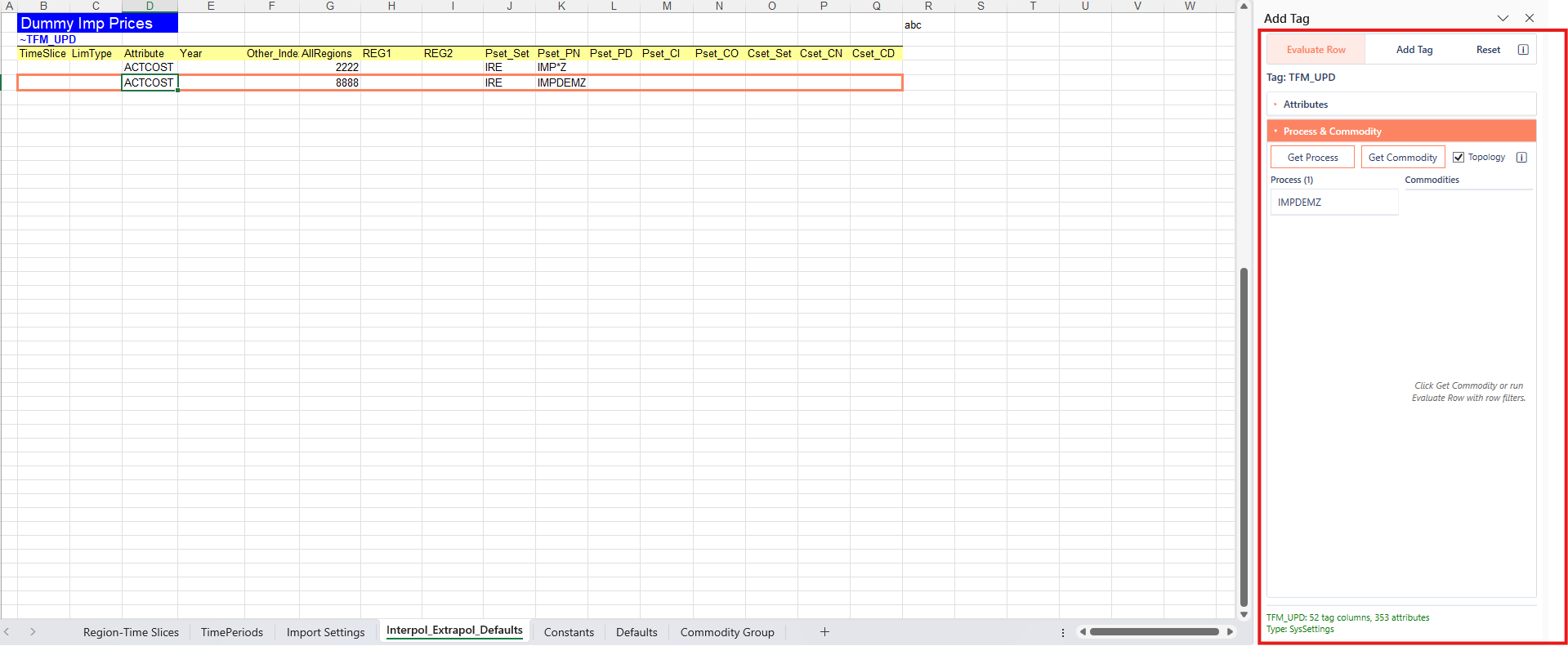
Evaluate Row reads the active cell’s tag table and the current data row, then shows context in the Add Tag task pane: which tag you are in, available attributes, and which processes and commodities match the filter values in that row’s process- and commodity-type columns. It works on tags already on the sheet even when those tags are not in the Add Tag list.
Those filters define the scope for which flat-file data is associated with that tag row in the model. Use Get Process and Get Commodity to refresh the matching lists; use Show mapping to see the filter values collected from the row.
When it is allowed
| Workbook state | Behavior |
|---|---|
| Classified and synced | Full evaluate on tag tables |
| Classified, not synced | Allowed; status may show Local file (not synced) |
| Not classified (inside the model folder) | Blocked |
| Outside the imported model | Allowed; members come from the model open in VEDA. See Files outside the model. |
See Workbook recognition.
How to use
- Place the active cell inside a tag table (data area or a cell that belongs to that tag’s block). See Add Tag for how tag tables are recognized.
- Choose Evaluate Row from the VEDA ribbon or right-click menu (or the Evaluate Row mode button in the pane).
- Confirm the pane shows the correct tag. After evaluate, Attributes starts collapsed and Process & Commodity starts expanded; lists fill when applicable.
-
Review process and commodity grids. Use Get Process / Get Commodity to fetch again. If the row has no values on that side (or the request fails), the grid is cleared so you do not see stale rows.
-
Optionally open Show mapping for the current row’s filter values.
The context menu exposes Evaluate Row only; Get Process and Get Commodity are buttons inside the pane.
Topology
top_check (alias top_chk) keeps a process–commodity pair only when the model topology already links them. in keeps input links, out keeps output links, and all keeps either. An empty cell or No turns that filter off, so the process and commodity filters stay independent.
The Topology checkbox sits in Process & Commodity, beside Get Process and Get Commodity. It is on by default. Resetting the pane turns it back on.
| Topology | What Get Process / Get Commodity do |
|---|---|
| On | Use this row’s top_check or top_chk, and only when the other side of the row also has a value. If that column is missing, both input and output links are kept. |
| Off | Process and commodity filters stay independent |
With the checkbox on:
| Cell | Effect |
|---|---|
| in | Input links only |
| out | Output links only |
| all, or any other value | Either |
| Empty or No | No topology filter |
Orange outline
Evaluate Row, Get Process, and Get Commodity outline the active data row of the resolved tag table in orange (full width of the header row). Closing or hiding the pane, switching mode, resetting the pane, or changing sheet clears the outline. Only one orange outline exists at a time; opening Cell(s) Info replaces it with that feature’s own range outline.