Cell(s) Info
What it is for
Cell(s) Info fetches flat-file data from the model for the cells you select in Excel and shows it in a pivot view. Use it to explore what lies behind values in a synced scenario workbook without leaving Excel.
The workbook must be classified and synced under an imported model. Unsynced, unrecognized, or files outside the model folder are blocked before any request. See Workbook recognition and Files outside the model.
Modes
| Mode | Menu / ribbon | What is fetched |
|---|---|---|
| By cell(s) | Cell(s) Info | Every cell in the current selection (one cell, a contiguous block, or multiple non-contiguous areas) |
| By Row | By Row / Cell Info By Row | All cells in the selected row within the current table region |
| By Column | By Column / Cell Info By Column | All cells in the selected column within the current table region |
How to use
- Open a synced scenario workbook under an imported model (How models are linked).
- Confirm VEDA is connected (How we connect).
- Select the cell(s), or place the active cell in the row or column you care about.
- On the VEDA ribbon or right-click VEDA menu, choose Cell(s) Info, By Row, or By Column.
-
Review the pivot. Close the window when finished.
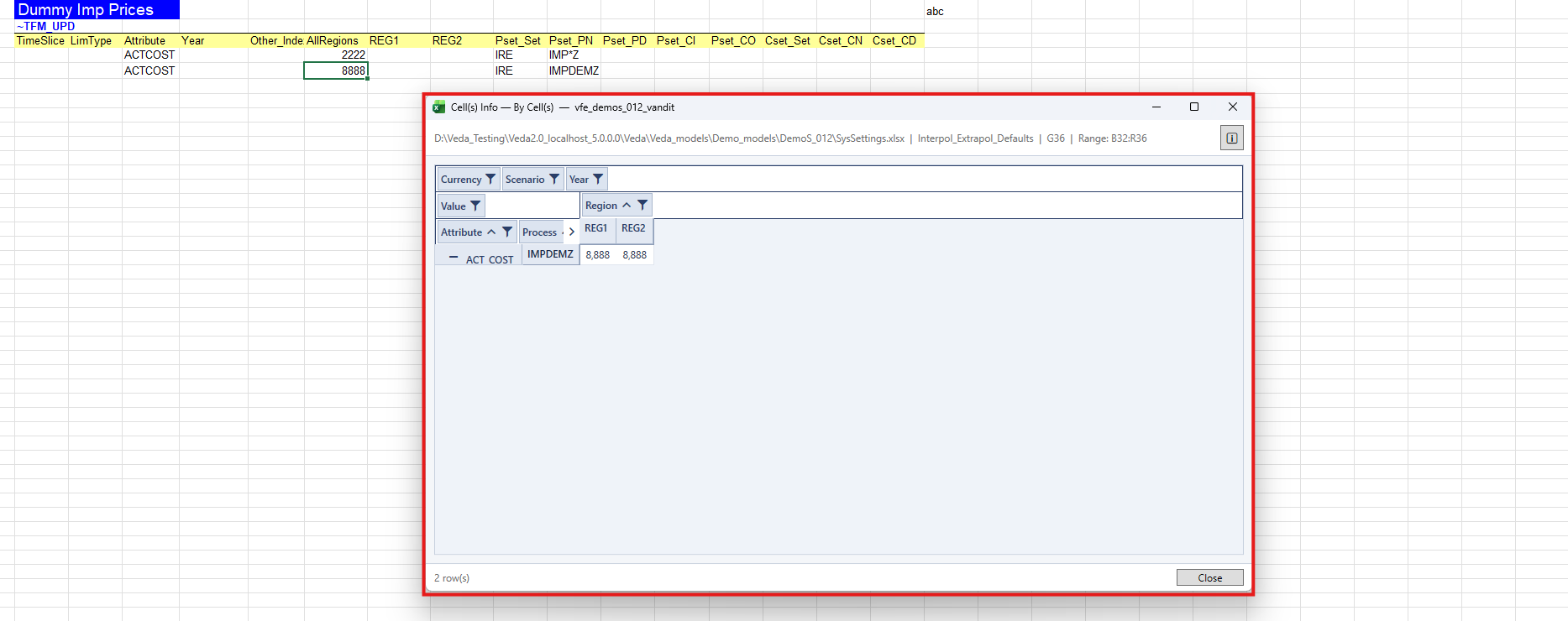
While the window is open, Excel outlines the target range with a thick bright orange border. The outline is removed when you close the form, open another Cell Info, change sheet, or another feature replaces the outline.
Pivot layout (overview)
Fields are placed automatically from the data:
- Value — summed in the values area
- Year — usually columns
- Region — columns when there is a single year and multiple regions; otherwise rows or filter
- Other fields — rows if they have more than one distinct value; filters if they have exactly one
- Internal or metadata columns are hidden
You can rearrange fields by dragging the inline field boxes, or use right-click Show Field List for the field chooser. Subtotals and grand totals are hidden. Row dimensions use a tabular layout (each dimension in its own column). Field names appear in title case (for example commodity_gr as Commodity Group).